AI PNG Generator
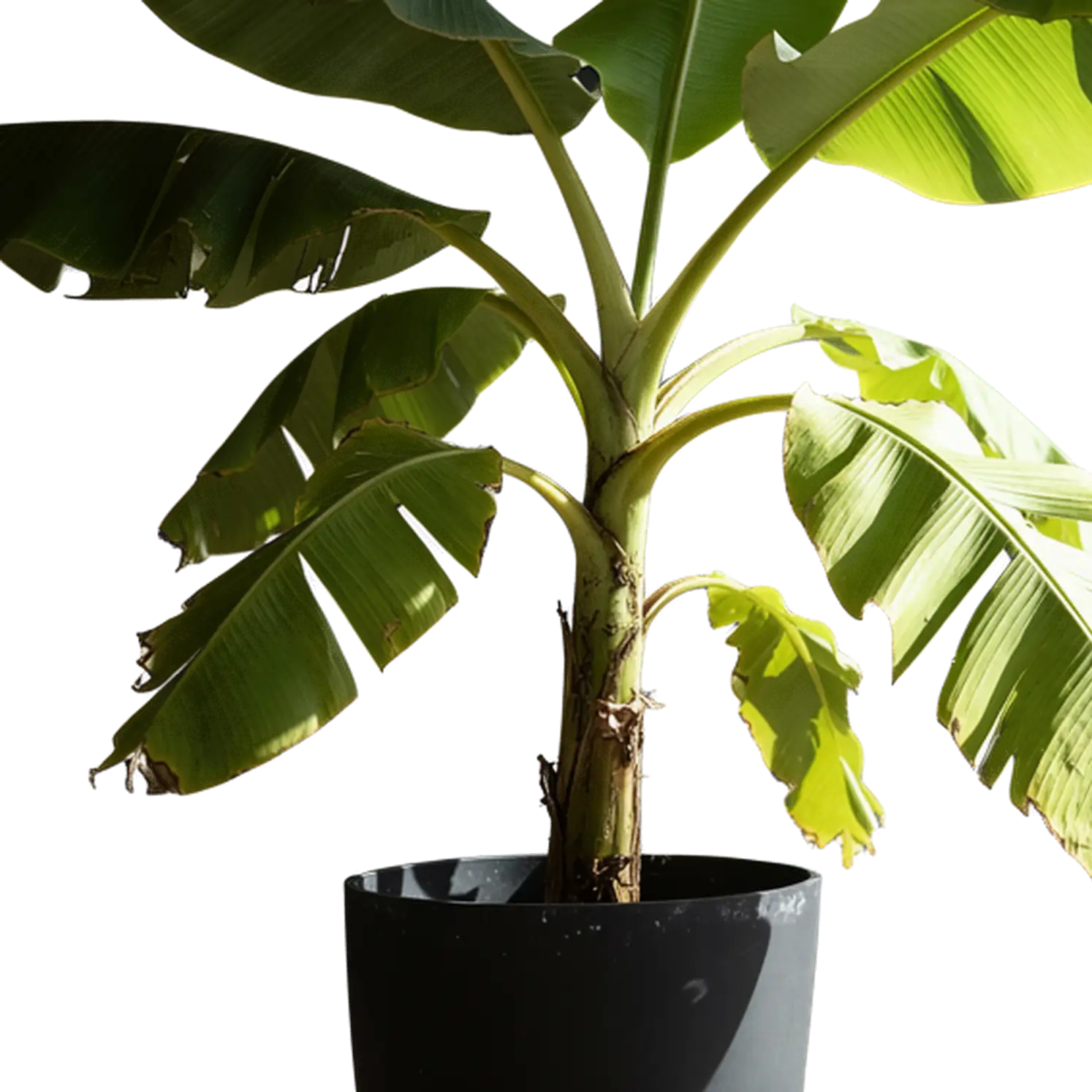
An AI PNG generator creates new images with transparent backgrounds from a description or a visual reference. Make illustrations, objects and characters for invitations, digital content and custom designs. Each PNG is an element you can combine with your own text, colors and layout.
An AI PNG generator for stickers, illustrations and characters
Create elements around your project's message, audience and visual identity.
Stickers with personality
Turn a gesture, expression or object into a visual reaction. A distinctive silhouette helps the sticker communicate even at a small size.
Illustrations that explain
Use the AI PNG generator to make visual examples for lessons and learning materials. Add labels and captions in your editor to connect the images to the explanation.
Characters with a story
Imagine a mascot and the objects that belong in its world. Explore its appearance in the AI PNG generator, then arrange the separate elements into scenes.
Details that tie a theme together
Create bows, flowers and open frames for invitations and campaign graphics. A shared palette links the main design to the smaller supporting pieces.
AI PNG generator or background remover?
Match the tool to your starting material and the kind of image you want to make.
| Workflow | Start with | Get | Choose when you want to |
|---|---|---|---|
| Text to PNG | An idea described in words | A new image generated with transparency | Invent an illustration, object or character |
| Reference to PNG | A photo or illustration | A new transparent version based on the image | Develop an element from a visual starting point |
| Background removal | A photo with a subject you want to use | The photo's subject separated from its surroundings | Use an existing person or product in a new layout |
Use the AI PNG generator to create a new asset. Choose the background remover when the subject you want is already in your photo.
How to use the AI PNG generator
Take an idea from your imagination to a file you can place in a design.
Pick text or reference mode
Start with text to invent an element, or use a visual reference to guide the AI PNG generator.
Set the creative direction
In text mode, describe the subject, colors and style. In reference mode, upload the image that will guide the creation.
Choose the frame
Select an aspect ratio and resolution with the final layout in mind. Give the subject the shape and space it needs.
Generate and save
Create the image with the AI PNG generator, choose your result and download the PNG for your design editor.
Write a useful prompt for the AI PNG generator
Build your description from five visual choices that work together.
A recognizable subject
Start with something specific, such as a fox carrying a tiny backpack. A distinctive detail gives the element its personality.
A visual style
Choose watercolor, cut paper, retro illustration or a photographic look that belongs with the rest of your design.
Color and texture
Set a palette and finish: sage and cream, glossy ceramic or soft felt. These details help separate one creative direction from another.
Pose and viewpoint
Describe how the subject faces the viewer and what it is doing: front-facing, overhead, smiling or holding an object.
Framing and spacing
Ask for the complete object with room around it. When combining several elements, describe where each one belongs.
Give the AI PNG generator a subject, a material and a frame. A fox with a backpack sets the idea; cut paper sets the style; a full-body view sets the composition. Change one choice at a time to explore a related version.
Frame the element around its shape
Use the AI PNG generator's aspect ratio options to give the subject a strong silhouette and room around its edges.
Square for a clear focal point
Center an expressive face, a piece of fruit or an illustrated symbol. An even transparent margin gives the element room to sit beside other graphics.
Portrait for full-height subjects
Give a character or tall object space from top to bottom. Ask for the complete subject so its silhouette becomes part of the design.
Landscape for decorative arrangements
Create branches, ribbons or groups of objects across a wider frame. Use them beside a heading or along the edge of an invitation.
The AI PNG generator offers 1K, 2K and 4K output. Choose for the element's final role: a large focal image benefits from more pixel detail than a small decorative accent.
Build a design around your transparent PNG
The AI PNG generator creates an element for your composition. Its transparent area lets the rest of the layout show through.
Give each element a clear role
- Place the PNG over a color that complements its palette and makes its outline easy to read.
- Use size to establish a hierarchy between the illustration, headline and supporting details.
- Align related elements by their center or baseline to bring a collection together.
- Keep the files from the AI PNG generator separate from finished designs so you can reuse them.
One illustration, several compositions
Arrange the image, background and text as separate layers in your editor. Reuse the illustration on an invitation, social post and presentation, changing the message and layout while keeping the visual connection.
AI PNG generator FAQ
Get from your first description to a transparent element you can use.
Add another dimension to your project
Pair the AI PNG generator with the right tool for your next visual task.
Create the missing piece with an AI PNG generator
Imagine the illustration, sticker or small detail that will make the design yours. Start with words or a reference and turn it into a transparent PNG.
Generate Transparent PNGs